Menus and Tooltips
Most commands in Vitreo are in right-click menus. Point at a button or a menu row to see what it does in a tooltip.
Right-click menus
Right-click an item box, a project, a page, a grid row or a row in the File Explorer. A menu with the commands for that thing opens.
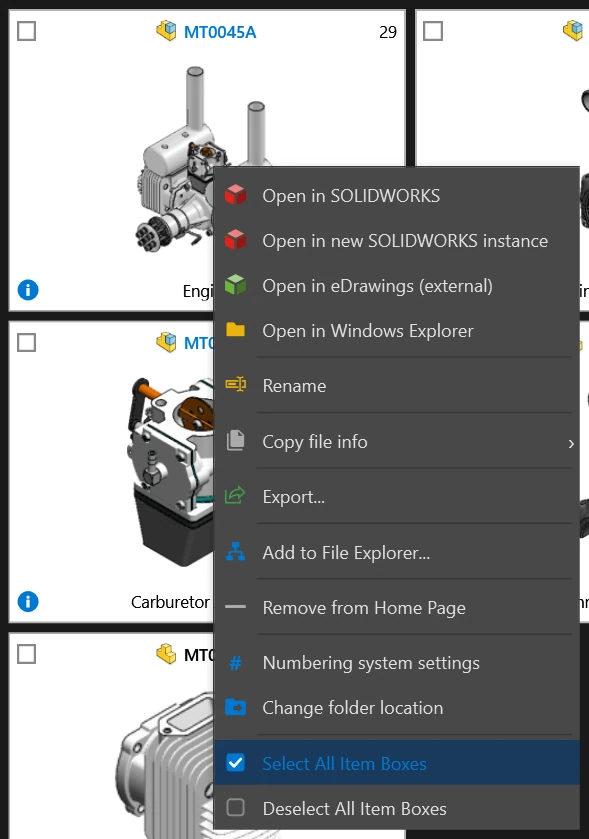
| You see | It means |
|---|---|
| An arrow on the right of a row | The row has a submenu. Point at it to open the submenu. |
| A dim row | The command cannot be used now. |
| A red row | The command removes or deletes something. Read the row before you click. |
| A number in the row, for example Add 3 items to File Explorer... | The command works on that many checked items. See Checking Item Boxes. |
To close a menu without a command:
- Click anywhere outside the menu.
Tooltips
Point at a button, a tab, a menu row or a field. After a moment a tooltip shows:
- The name in bold.
- One or two lines that explain what it does.
- Sometimes a tip or a warning.
The tooltip of a menu row opens beside the menu, so it never covers the other rows.
Hide all tooltips
Know your way around? Turn on Hide tooltips in Settings > Options. Turn it off to see them again. See Options.